
Tutorial 2: Plotting and CLI options#
This tutorial expands on Tutorial 1 with visualization and demonstrating the behavior of some key CLI options.
This tutorial assumes you have floodsr installed per Tutorial 1.
There are three common ways to run this tutorial (i.e., execution contexts):
command line (CLI): proceed by copy/pasting the below commands from your web-browser into your terminal. NOTE for most terminals you’ll need to remove the prefix
!from each command.local notebook (Jupyter): Use the button to save this notebook as an
.ipynbfile to your local machine (may need to click save as) and open it with your local Jupyter kernel. see Local notebook (Jupyter) for details.hosted notebook (Colab): Use the button to open this tutorial on Google Colab.
Install additional packages#
For this tutorial, we need the additional python packages matplotlib and rasterio. Like the install of floodsr shown in Tutorial 1, obtaining and implementing these packages depends on your execution context:
The appropriate installation steps depend on your execution context, which is described in detail in :ref:basic_install.
Here are the basic steps for each:
command line (CLI): first, ensure pipx is installed and on PATH, then run
pipx install floodsr. see Command line (CLI) for more details.local notebook (Jupyter): same as above. then either follow the additional steps in Local notebook (Jupyter) to properly set up your environment, or be lazy and uncomment the below Jupyter cell and run.
hosted notebook (Colab): uncomment the below colab cell and run. see Hosted notebook (Colab) for details.
# %pip install -q matplotlib rasterio
Let’s check the versions now:
import matplotlib
import rasterio

print(f"matplotlib=={matplotlib.__version__}")
print(f"rasterio=={rasterio.__version__}")
Prove the install#
The previous cell imports the plotting dependencies and prints their versions so you can confirm the active notebook kernel has the required packages.
Imports#
from pathlib import Path
from urllib.request import urlretrieve

import matplotlib.pyplot as plt
import numpy as np
from rasterio.warp import Resampling, calculate_default_transform, reproject


def read_raster_band_1(fp):
    """Read band 1 as float and promote masked nodata pixels to NaN."""
    assert Path(fp).is_file(), f"missing raster\n    {fp}"
    with rasterio.open(fp) as src:
        return src.read(1, masked=True).astype(float).filled(np.nan)
# print cwd
print(f"Current working directory: {Path.cwd()}")
Download the same test data as Tutorial 1#
If you already downloaded these files while working through Tutorial 1, you can skip this.
urlretrieve(
    "https://github.com/cefect/floodsr/releases/download/v0.0.3/hires002_dem.tif",
    "hires002_dem.tif",
)
urlretrieve(
    "https://github.com/cefect/floodsr/releases/download/v0.0.3/lowres032.tif",
    "lowres032.tif",
)
lowres_fp = Path("lowres032.tif").resolve()
dem_fp = Path("hires002_dem.tif").resolve()
assert lowres_fp.is_file(), f"missing low-res raster\n    {lowres_fp}"
assert dem_fp.is_file(), f"missing DEM raster\n    {dem_fp}"
Plot the tutorial inputs#
We start by plotting the low-resolution flood-depth raster in blue and the DEM tile with a terrain colormap.
# Read both inputs with masked nodata promoted to NaN for plotting.
lowres_arr = read_raster_band_1(lowres_fp)
dem_arr = read_raster_band_1(dem_fp)

# Plot the flood raster beside the DEM.
fig, axes = plt.subplots(1, 2, figsize=(10, 4))
im0 = axes[0].imshow(np.where(lowres_arr > 0, lowres_arr, np.nan), cmap="Blues")
axes[0].set_title("Low-res flood depth")
axes[0].axis("off")
fig.colorbar(im0, ax=axes[0], fraction=0.046, pad=0.04)
im1 = axes[1].imshow(dem_arr, cmap="terrain")
axes[1].set_title("High-res DEM")
axes[1].axis("off")
fig.colorbar(im1, ax=axes[1], fraction=0.046, pad=0.04)
fig.tight_layout()
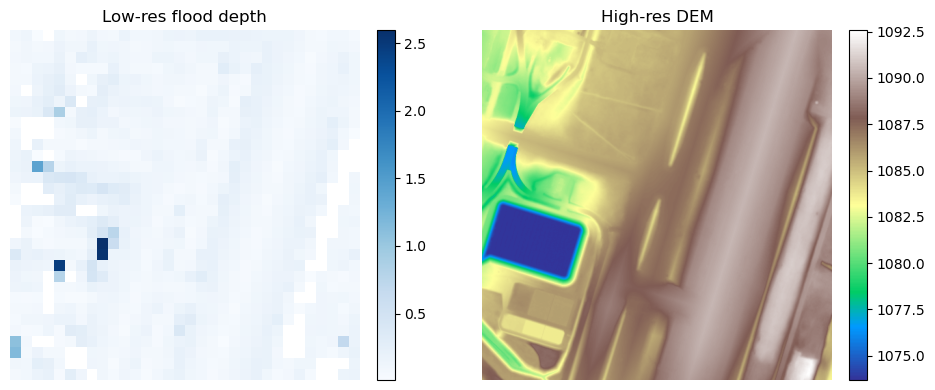
this shows the not-so-great coarse pluvial flood raster at 32m
Probe the CRS of both rasters#
A coordinate reference system (CRS) tells raster software how pixel locations map onto real-world coordinates.
Before we trigger a CRS mismatch on purpose, let’s inspect the CRS metadata on the original rasters.
with rasterio.open(lowres_fp) as src:
    print(f"{lowres_fp.name}: crs={src.crs} shape={src.shape} res={src.res}")

with rasterio.open(dem_fp) as src:
    print(f"{dem_fp.name}: crs={src.crs} shape={src.shape} res={src.res}")
Here we see that the CRS of both rasters are identical.
Nice for simple test data, but not so interesting for demonstrating how floodsr handles CRS mismatch. Let’s mix it up.
Create a CRS mismatch on purpose#
To demonstrate --crs-policy, we reproject the low-resolution raster to 3978 and save it as a new GeoTIFF.
!rio warp lowres032.tif lowres032_epsg3978.tif --dst-crs EPSG:3978 --resampling nearest --co TILED=YES
Run tohr with the mismatched CRS#
This command should fail because the low-resolution raster and the DEM no longer share the same CRS and we haven’t told floodsr how to handle this mismatch yet, so it assumes --crs-policy strict by default.
!floodsr tohr --in lowres032_epsg3978.tif --dem hires002_dem.tif
What --crs-policy does#
--crs-policy controls how floodsr handles CRS mismatches between the low-resolution depth raster and the DEM. This is necessary because tohr needs the rasters to line up on a common projected grid before preprocessing and inference can proceed, and there is not an obvious “right answer” for which CRS to use when they don’t match.
For this example we use --crs-policy=use-dem, which tells floodsr to treat the DEM CRS as the target CRS and reproject the low-resolution depth raster to match it.
We could have chosen --crs-policy=use-lores which would treat the low-resolution raster CRS as the target and reproject the DEM to match it.
!floodsr tohr --in lowres032_epsg3978.tif --dem hires002_dem.tif --crs-policy=use-dem --out lowres032_epsg3978_use_dem_sr.tif
Plot the CRS-policy result#
let’s visualize the result
use_dem_fp = Path("lowres032_epsg3978_use_dem_sr.tif").resolve()
use_dem_arr = read_raster_band_1(use_dem_fp)

plt.figure(figsize=(5, 4))
plt.imshow(np.where(use_dem_arr > 0, use_dem_arr, np.nan), cmap="Blues")
plt.title("`--crs-policy=use-dem` result")
plt.axis("off")
plt.tight_layout()
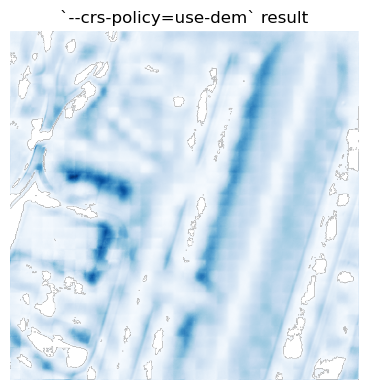
ooh… pretty
--min-depth-threshold#
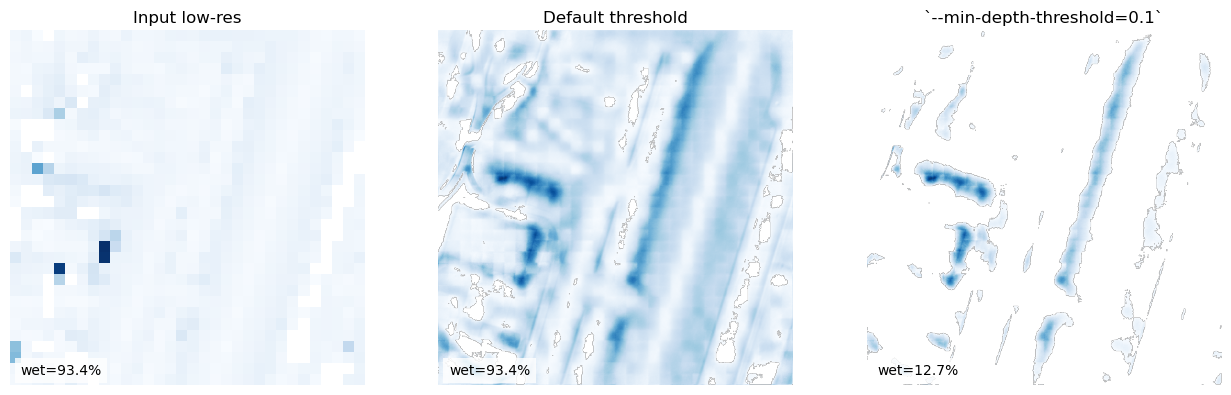
Now lets explore the argument --min-depth-threshold, which sets the minimum predicted depth retained in the output raster.
Values below the threshold are written as 0.0.
This is useful because very small positive predictions can be noisy or physically improbable, making it an important parameter for tuning the result.
First, let’s run tohr with the default --min-depth-threshold (which is 0.01) against the original CRS matching rasters as a comparison.
# Run the default threshold first so we have a baseline for comparison.
!floodsr -q tohr --in lowres032.tif --dem hires002_dem.tif --out lowres032_default_sr.tif

assert Path("lowres032_default_sr.tif").is_file(), "missing output raster\n    lowres032_default_sr.tif"
you’ll noticed we used the -q or --quiet flag to suppress the usual CLI output here.
Now let’s run tohr with a higher --min-depth-threshold of 0.1.
!floodsr tohr --in lowres032.tif --dem hires002_dem.tif --min-depth-threshold=0.1 --out lowres032_min_depth_01_sr.tif
Plot#
# Resolve the two outputs we want to compare.
default_fp = Path("lowres032_default_sr.tif").resolve()
threshold_fp = Path("lowres032_min_depth_01_sr.tif").resolve()
default_arr = read_raster_band_1(default_fp)
threshold_arr = read_raster_band_1(threshold_fp)

# Plot the input and both thresholded outputs side by side.
fig, axes = plt.subplots(1, 3, figsize=(13, 4))
plot_l = [
    (axes[0], np.where(lowres_arr > 0, lowres_arr, np.nan), "Input low-res"),
    (axes[1], np.where(default_arr > 0, default_arr, np.nan), "Default threshold"),
    (axes[2], np.where(threshold_arr > 0, threshold_arr, np.nan), "`--min-depth-threshold=0.1`"),
]
for ax, arr, title in plot_l:
    wet_pct = 100.0 * float(np.count_nonzero(np.nan_to_num(arr, nan=0.0) > 0.0)) / float(arr.size)
    ax.imshow(arr, cmap="Blues")
    ax.set_title(title)
    ax.axis("off")
    ax.text(0.03, 0.03, f"wet={wet_pct:.1f}%", transform=ax.transAxes, color="black", fontsize=10, bbox={"facecolor": "white", "alpha": 0.8, "edgecolor": "none"})
fig.tight_layout()
Next steps#
Continue with Tutorial 3 to see how floodsr can operate on large rasters